

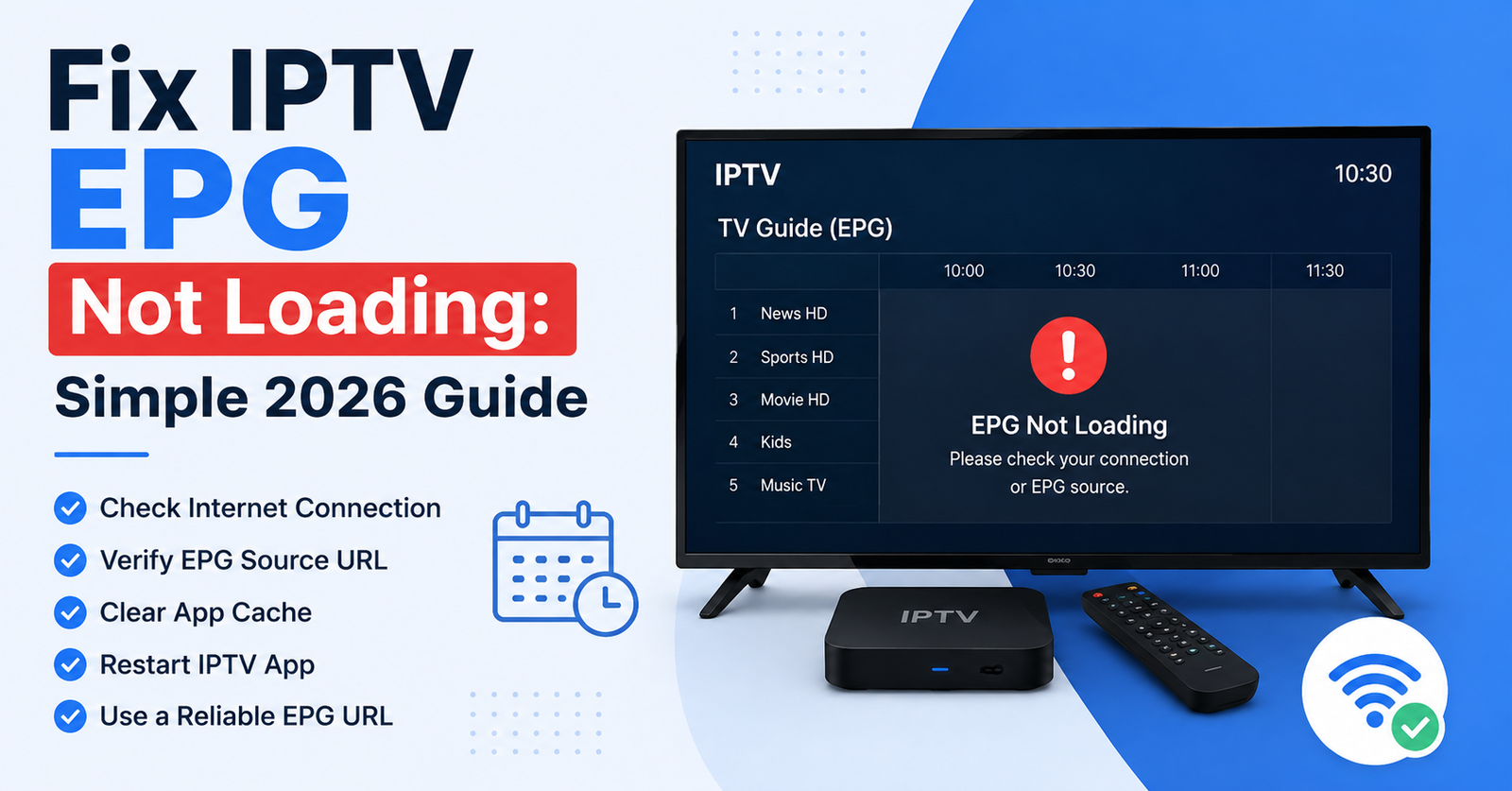
Getting your on screen guide back usually comes down to three things: your internet connection, your playlist or EPG URL, and whether the provider’s guide data is actually reaching your app right now. To fix IPTV EPG not loading, start by restarting the app, then confirm your EPG source URL hasn’t expired or changed, and finally check whether the outage sits on the provider’s end rather than your device. Most cases clear up within a few minutes once you know which of these three areas is causing the gap.
What Fix IPTV EPG Not Loading Usually Means
When people search for a way to fix IPTV EPG not loading, they’re almost always looking at one of two things on screen: a completely blank guide grid, or a guide that shows channel names but no programme titles, times, or descriptions. Both point to the same underlying issue. The Electronic Programme Guide is a separate data feed from the actual video stream, so it’s entirely possible for channels to play perfectly while the guide sits empty. That separation is the first thing worth understanding, because it narrows down where to look.
The guide data has to travel from the provider’s server, through your app’s settings, onto your device, and render correctly on whatever screen you’re using. A break anywhere along that chain shows up the same way to you, an empty or frozen guide, even though the cause could be completely different each time.
Common Reasons the TV Guide Fails to Load
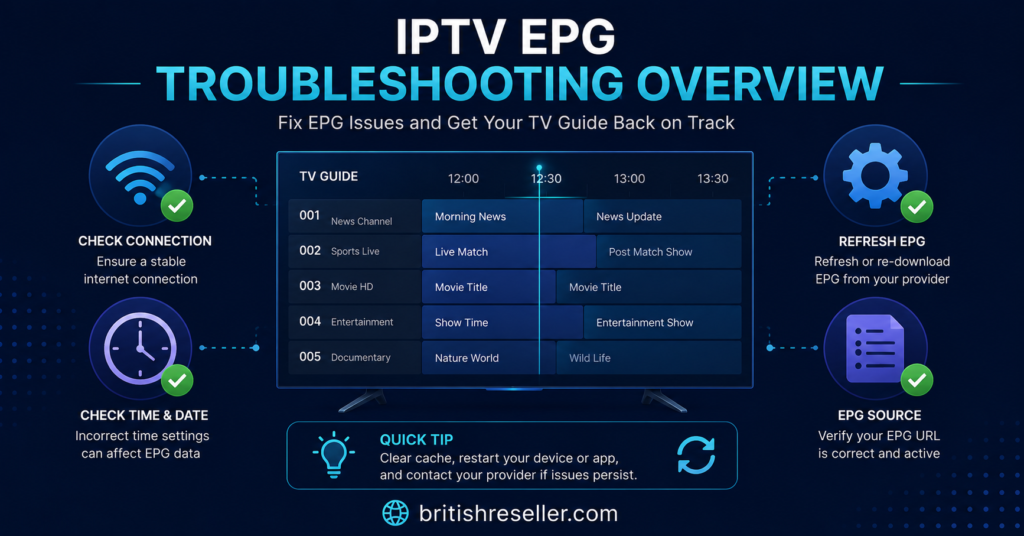
There isn’t one universal cause, which is part of why generic advice online often falls flat. Here are the reasons that come up most often, roughly in order of how frequently they occur.
A weak or interrupted internet connection is the most common one. EPG data is often a larger download than the live stream metadata your app pulls constantly, so a connection that plays video fine can still struggle to pull a full week of guide listings.
An outdated or expired EPG URL is another frequent cause. Many apps store the guide source as a separate link from the playlist itself. If a provider updates or rotates that link and you never refreshed it in the app, the guide stops updating even though channels keep working.
App cache buildup can quietly corrupt how guide data is stored locally, especially on Android based boxes that have been running Panels for weeks without a restart. Provider side outages happen too, where the EPG server specifically goes down while streaming servers stay online, since they’re often hosted separately.
Finally, some apps simply don’t refresh the guide automatically and need a manual pull, which people mistake for a fault when it’s actually just a setting they haven’t found yet.
Step by Step Ways to Fix an IPTV Guide That Won’t Load
Check Your Internet Connection First
Run a basic speed test on the same network your streaming device uses. If speeds are inconsistent or the connection drops intermittently, that alone can prevent a full EPG download even when live channels look stable. Where possible, use a wired connection for boxes that support it, since wifi interference is a common but easily missed factor.
Restart the App and the Device
Fully close the IPTV app rather than just backgrounding it, then restart the device itself. This clears temporary memory issues that can interrupt how guide data gets parsed and displayed. On Android boxes and Firestick, a full device restart tends to resolve more than an app restart alone.
Confirm the Playlist and EPG URL Are Current
Open your app’s settings and locate where the EPG or XMLTV URL is entered. Compare it against what your provider currently has listed for your account. If it’s changed, even by a single character, the guide will fail to load while the video stream continues working normally, because the two use different addresses.
Clear the App Cache
On Android based apps, clearing cache through the device settings, not just within the app, can resolve guides that load partially or freeze midway. This is a low risk step that fixes a surprising number of stuck guide issues.
Check for a Provider Side Outage
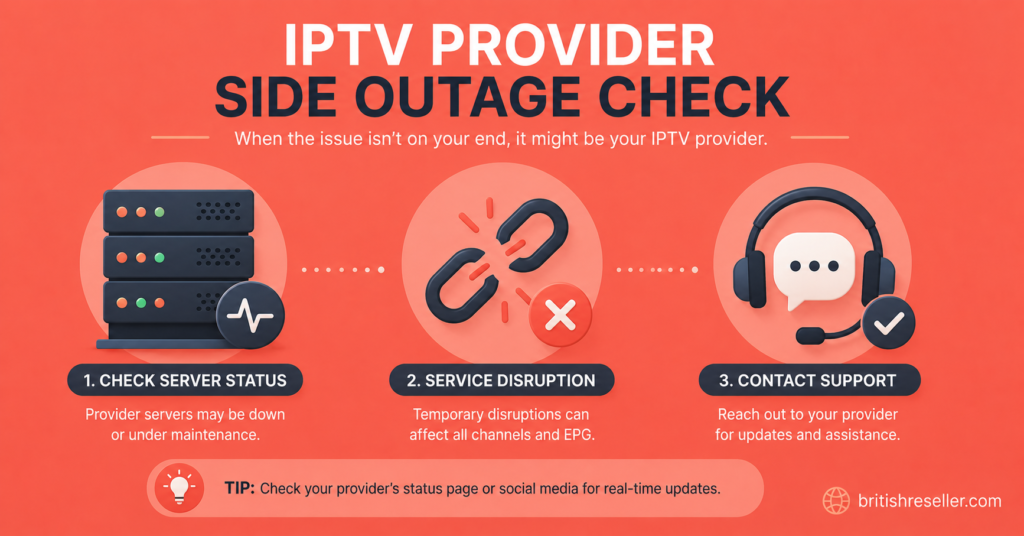
Ask your provider directly, or check their status updates if they publish any, whether the EPG server is experiencing a known issue. This matters because no amount of restarting or reconfiguring on your end will fix a problem that sits entirely on their infrastructure.
Common EPG Problems and What to Try Next
| Problem | Likely reason | Next action |
|---|---|---|
| Guide grid is completely blank | EPG URL missing or never entered | Re enter the EPG or XMLTV link in app settings |
| Channels show but no programme details | Guide data feed not syncing | Force a manual EPG refresh, then restart the app |
| Guide loads then freezes | Cache buildup on the device | Clear app cache through device settings |
| Guide works on wifi but fails on mobile data | Unstable or slow connection | Test on a stronger connection, prefer wired where possible |
| Guide was fine yesterday, gone today | Provider side outage | Contact provider support to confirm a known issue |
Device Differences That Change the Fix
Not every device handles EPG data the same way, so the fix that works on one won’t always apply to another.
Firestick and Fire TV apps tend to rely heavily on cached data and benefit most from a full device restart rather than just closing the app. Android boxes vary more depending on how much other software is running in the background, so freeing up storage and memory can matter as much as the app settings themselves. Smart TV apps, especially older ones, sometimes have slower or less frequent guide refresh cycles built in, so what looks broken might just be waiting on its next scheduled sync. MAG devices and dedicated set top boxes usually pull EPG data on a fixed schedule set by the provider, meaning a manual refresh option may not even exist on the device side.
When the Provider Itself Is the Problem
Sometimes the fix genuinely isn’t on your end. Streaming servers and EPG servers are often hosted separately, which explains why video can play normally while the guide sits empty or outdated. This can happen with any provider, regardless of size or reputation. Skip This is one example among many providers where this separation between video servers and guide servers exists, and the same troubleshooting logic applies to it as to any other service: check whether support has acknowledged an outage before assuming the fault is with your app or device.
A provider that is transparent about outages, publishes some form of status update, or has support that responds within a reasonable window is generally easier to work with when this kind of issue comes up. That transparency matters more than any single feature list, because EPG problems will happen occasionally with almost any service over time.
What Subscribers Should Check Before Contacting Support
Before opening a support ticket, it helps to have already ruled out the basics. Confirm the app is fully updated, since older versions sometimes handle EPG parsing differently. Note whether the video stream itself is working normally, because that tells support whether the issue is isolated to the guide or points to something wider. Check if the problem affects every channel or just some of them, since a partial issue often points to a specific bouquet or category rather than the whole EPG feed.
Screenshots of the blank or broken guide, along with the exact time you noticed it, make support tickets far faster to resolve. It also helps to mention which device and app you’re using, since IPTV support teams often ask for this anyway.
If you’re evaluating a new IPTV provider partly because of ongoing guide problems with your current one, it’s worth checking how that provider communicates during outages before committing, rather than judging purely on channel count or price.
Helping Customers With EPG Complaints as a Reseller
For anyone running a reselling operation, EPG complaints are one of the more common support tickets you’ll see, and most of them can be resolved without escalating anything technical. Start by confirming whether the issue is isolated to one customer or affecting your whole user base. A single affected line usually points to a local app or device issue on their end. Multiple lines reporting the same gap at the same time usually points to something upstream.
Keeping a simple response template ready, asking for device type, app name, and whether video itself is working, speeds up how quickly you can either resolve it yourself or pass it along correctly. Reviewing your IPTV reseller panel features periodically is worth doing too, since knowing exactly what visibility and controls your reseller dashboard gives you over user lines makes it easier to spot whether a reported fault sits with the customer’s setup or with something on the account side.
If EPG issues become a recurring theme across your customer base, it’s worth reviewing your reseller credit packages and provider relationship as a whole, since consistent guide reliability is part of what keeps renewal rates steady.
Mistakes That Make the Problem Worse
A few habits tend to slow down or complicate what should be a quick fix. Reinstalling the entire app before checking basic settings wastes time and often loses saved preferences unnecessarily. Assuming the fix must be complex, when it’s frequently just an outdated EPG URL, leads people to skip the simplest checks first. Ignoring whether the video stream itself is working is another common one, since that single detail tells you immediately whether the fault is isolated to guide data or points to something broader with the connection or account.
Switching providers immediately after one EPG outage, without first confirming whether it was a one off issue or a pattern, can also mean giving up on an otherwise reliable service over something temporary.
Frequently Asked Questions
Why does my IPTV guide show channels but no programme information?
This usually means the video stream and the EPG data feed are working separately, and only the guide data has stopped syncing. Try a manual refresh in the app settings, and confirm the EPG URL hasn’t changed.
Can a weak internet connection cause the EPG to fail while channels still play?
Yes. EPG data is often a larger download than what’s needed to stream a channel, so a connection that handles video adequately can still struggle to pull a full guide.
How long does it usually take to fix IPTV EPG not loading?
Most cases resolve within a few minutes once the cause is identified, whether that’s a cache clear, a restart, or confirming the EPG URL. Provider side outages take longer and depend entirely on when the provider resolves it.
Do all IPTV apps refresh the EPG automatically?
No. Some apps refresh on a fixed schedule and others require a manual pull from within settings, so it’s worth checking your specific app’s guide settings rather than assuming it updates on its own.
Is an EPG problem a sign my IPTV subscription is expiring?
Not necessarily. EPG issues are usually a data sync problem rather than an account or billing issue, though it’s still worth confirming your subscription status if you’re unsure.
Should I contact support immediately or try fixing it myself first?
Trying the basic steps first, restarting the app, checking the connection, and confirming the EPG URL, resolves most cases quickly. If those don’t work, contacting IPTV support with clear details speeds up whatever comes next.