

To stop ISP throttling & buffering on IPTV, start by working out whether your ISP is actually the cause, since buffering is just as often down to your router, your wifi signal, or the streaming server itself. A wired connection, a quick speed test at peak time, and switching to a different DNS or a reputable VPN will usually tell you within minutes whether your provider is shaping your traffic. The rest comes down to fixing whichever part of that chain is actually weak, rather than assuming it’s always the ISP.
Why ISPs Throttle Streaming Traffic in the First Place
Most UK broadband providers don’t sit around deliberately targeting IPTV users. What actually happens is broader traffic management. During busy evening hours, particularly between 7pm and 11pm when a huge share of UK households are streaming something, ISPs apply traffic shaping to keep their network usable for everyone. Video traffic, especially large sustained streams, is often one of the first categories to get deprioritised when a local exchange or cell is under load.
Deep packet inspection is the technique some providers use to identify what kind of traffic is passing through, even without seeing the actual content. IPTV traffic can look similar to file-sharing or other high-bandwidth activity, which sometimes makes it a target for throttling even when nothing about the underlying content is different from ordinary video streaming.
It’s worth being clear that this is a network management practice, not something specific to IPTV as a technology. IPTV itself is simply a delivery method, sending television over an internet connection instead of satellite or aerial. Whether a particular stream buffers or throttles has almost nothing to do with the technology and everything to do with network conditions and the legitimacy of the underlying content source.
Buffering Isn’t Always Throttling: How to Tell the Difference
Buffering has several possible causes, and jumping straight to “my ISP is throttling me” is often the wrong diagnosis. Before changing anything with your connection, it helps to isolate where the problem is actually happening.
| Problem | Likely Reason | Next Action |
|---|---|---|
| Buffering only in the evening | Network congestion at peak hours | Test again late at night or early morning |
| Buffering on one device only | Weak wifi signal or outdated app | Switch to wired connection or update the app |
| Buffering across all devices and apps | Genuine bandwidth or throttling issue | Run a speed test, contact your ISP |
| Buffering only with one IPTV provider | Server-side congestion, not your connection | Check with the provider’s support channel |
| Constant freezing regardless of time | Local network hardware issue | Restart router, check cabling |
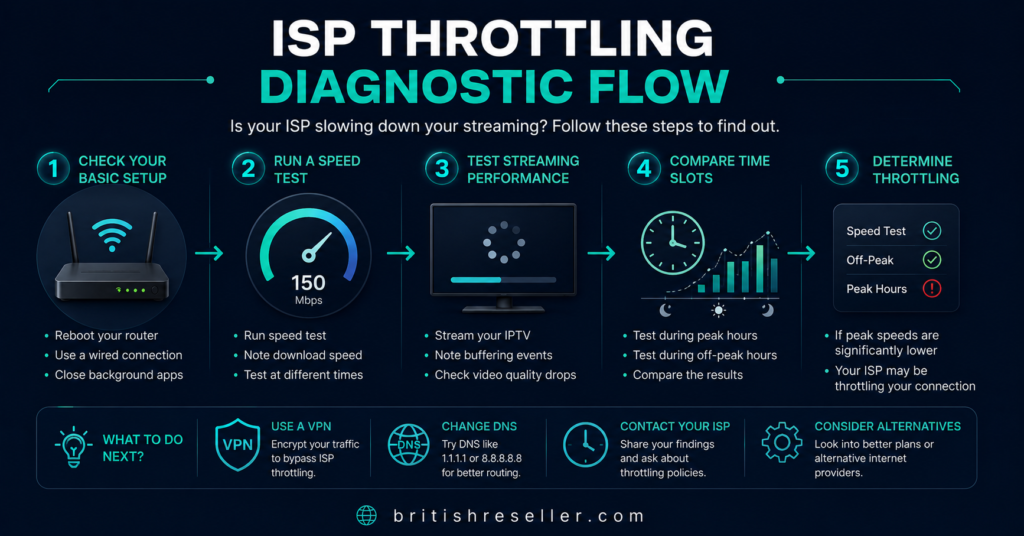
A speed test run directly before and after connecting your IPTV app can be revealing. If your general browsing and download speeds are fine but the stream still stutters, the bottleneck is more likely at the provider’s server end or your own home network setup than at your ISP.
A Step-by-Step Sequence to Stop ISP Throttling & Buffering on IPTV
Work through these in order rather than jumping straight to the most drastic option. Most buffering issues get resolved in the first three steps.
1. Switch to a wired connection. Wifi introduces variability that’s easy to mistake for an ISP problem. An ethernet cable from your router to your streaming device removes that variable entirely and is the single most reliable fix for intermittent buffering.
2. Restart your router properly. Not a quick power cycle, but a full ten-second unplug, since some routers hold onto congested routing tables that a soft restart doesn’t clear.
3. Test at a different time of day. If buffering only shows up during peak hours, that points toward general network congestion rather than a fault with your setup.
4. Change your DNS provider. Some ISPs route DNS requests in a way that adds latency to streaming traffic. Switching to a public DNS service can sometimes reduce lookup delays, though results vary by provider and location.
5. Try a reputable VPN. This isn’t about accessing anything you couldn’t already access. It’s about the fact that some ISPs apply traffic shaping based on recognising streaming traffic patterns. Encrypting that traffic through a VPN can prevent your ISP from identifying and deprioritising it, though it can also add its own latency depending on server load and distance.
6. Lower the stream quality temporarily. If your connection genuinely can’t sustain 4K or FHD reliably, dropping to a lower bitrate is a practical workaround while you sort out the underlying cause.
7. Contact your ISP directly. If none of the above changes anything, ask your provider outright whether traffic management policies apply to your package. Some providers will confirm this, others won’t, but it’s a reasonable question to ask before assuming the worst.
Pro tip: Run your speed test using a wired connection first, then again over wifi. If the two results are very different, your wifi signal is the problem, not your ISP.
Router and Home Network Settings Worth Checking
Home network configuration causes more buffering than most people expect. A few settings are worth reviewing before blaming anything external.
Quality of Service settings, often shortened to QoS, let you prioritise streaming traffic over other devices on your network. If you’ve got several devices downloading, gaming, or backing up files while someone’s trying to watch IPTV, QoS can stop those other activities from starving your stream of bandwidth.
Router placement matters more than people assume. A router tucked in a cupboard or behind a TV loses a significant amount of signal strength. Moving it to a central, elevated position can noticeably improve wifi-based streaming even without touching any settings.
Older routers, particularly ones supplied free by an ISP several years ago, sometimes struggle to handle multiple simultaneous streams. If buffering worsens whenever more than one device is active, an ageing router could be the actual bottleneck rather than throttling.
Pro tip: If your router is more than four or five years old and supports only older wifi standards, upgrading it can sometimes solve buffering issues that no amount of troubleshooting will fix.
Does a VPN Actually Help with IPTV Buffering?
A VPN can help in specific circumstances, but it isn’t a universal fix. Where a VPN tends to help is when an ISP is applying traffic shaping based on recognising the type of traffic passing through, rather than the actual bandwidth being used. Encrypting your connection can prevent that kind of pattern-based throttling.
Where a VPN can make things worse is when your ISP isn’t throttling at all. Routing your traffic through an additional server adds a layer of latency and depends heavily on that server’s own load and distance from you. A congested or distant VPN server can introduce more buffering than it solves.
If you decide to test this, choose a VPN with servers physically close to you and a reputation for stable speeds, then compare buffering before and after with the same IPTV app, at the same time of day, so the comparison is fair.
Choosing an IPTV Provider With Buffering in Mind
Not every buffering issue originates with your connection. Server capacity, content delivery network quality, and how many concurrent users a provider is supporting all affect stream stability on their end.
When evaluating an IPTV provider, whether you’re a subscriber comparing options or a IPTV UK Panel reseller vetting who to work with, it’s worth asking direct questions about infrastructure rather than taking smooth playback claims at face value. Ask what content delivery setup they use, whether they publish any information about server capacity, and how they handle load during high-demand periods such as major sporting weekends.
An example worth mentioning here is Skip This, an illustrative case of a provider that, like any other, should be judged against the same standards: transparency about their infrastructure, clear refund terms, and a support channel that responds when something goes wrong. Smooth playback under normal conditions doesn’t guarantee performance during peak load, so it’s reasonable to ask providers directly how they’ve handled past congestion.
Pro tip: Ask a prospective provider what happens during a major live event with unusually high concurrent viewers. Their answer tells you more about server planning than any marketing page will.
Legitimacy matters here too. IPTV is a delivery technology, and whether a specific service is operating within the correct content rights and distribution permissions is a separate question from how well it streams. A provider with a professional-looking website and working payment system isn’t automatically operating with the correct licensing, so it’s worth checking their business transparency, terms, and content rights independently of how well their stream performs.
What IPTV Resellers Should Know About Buffering Complaints
Buffering complaints are one of the most common support tickets a reseller deals with, and most of them aren’t actually about your service quality. Before assuming the panel or the provider is at fault, it helps to walk the customer through the same basic checks: wired connection, router restart, and a time-of-day comparison.
Having a clear, repeatable troubleshooting message ready to send customers saves time and reduces the number of tickets that escalate unnecessarily. Resellers who explore the full panel feature list will find that most panels include connection logs and usage data that can help identify whether a complaint traces back to server load on the provider’s end or the customer’s own network.
Sub-resellers face an added layer here, since they’re often relying on a parent reseller’s infrastructure and don’t have direct visibility into server-side performance. Setting expectations early, and knowing exactly who to escalate a persistent buffering complaint to, avoids a lot of back-and-forth with frustrated customers.
Pro tip: Keep a short, standard troubleshooting message saved and ready to send. Most customer buffering complaints are resolved before you even need to check server status.
Common Mistakes That Make Buffering Worse
A handful of habits tend to make buffering issues harder to diagnose or worse than they need to be.
Testing on wifi only, without ever trying a wired connection, leaves the most common cause unchecked. Assuming throttling immediately, without running a basic speed test first, often leads to changing the wrong thing. Using an outdated IPTV player app can also cause playback issues that have nothing to do with the network at all, since some apps handle adaptive bitrate streaming better than others.
Running multiple bandwidth-heavy activities at the same time as streaming, such as large downloads or cloud backups, is another common overlooked cause. And relying on a single test at a single time of day rarely gives an accurate picture, since network conditions shift throughout the day.
Frequently Asked Questions
Is ISP throttling of IPTV legal in the UK?
Traffic management is generally permitted under UK regulations as long as it’s applied fairly and disclosed in a provider’s terms. It’s worth checking your ISP’s fair usage policy if you suspect this is happening to you.
How do I know if my ISP is throttling my IPTV connection specifically?
Compare your general download and browsing speed against your streaming performance at the same time. If general speeds are fine but IPTV consistently stutters while other traffic doesn’t, that’s a sign worth investigating with your provider.
Will a wired connection completely stop buffering?
Not always, but it removes one of the most common causes. If buffering continues after switching to ethernet, the issue likely sits elsewhere, such as server load or your broadband package’s overall speed.
Does upgrading my broadband package fix throttling?
It can help if the underlying issue is genuine bandwidth congestion, but it won’t fix pattern-based traffic shaping, since that’s applied regardless of your overall speed tier.
Can a VPN guarantee smooth IPTV streaming?
No. A VPN can help in cases of pattern-based throttling but adds its own latency and depends on server quality, so it isn’t a guaranteed fix for every buffering scenario.
Should I contact my IPTV provider or my ISP first when buffering happens?
Run the basic checks yourself first, wired connection and a time-of-day test, since that usually tells you which side the problem is on before you need to contact either party.
Conclusion
Getting to the bottom of buffering means working through the chain methodically rather than assuming the worst. To stop ISP throttling & buffering on IPTV, the most reliable approach is ruling out your own network first with a wired connection and a fair speed comparison, then testing changes like DNS or a VPN if pattern-based throttling still looks likely, and only then treating your ISP or provider as the source of the problem. There’s no single fix that works for everyone, since the cause varies by household, provider, and time of day, so treat this as a checklist to work through rather than a one-step solution. If you’re still stuck after trying the basics, it’s worth comparing reseller credit packages and providers directly, or requesting a free trial line to test performance on your own connection before committing.
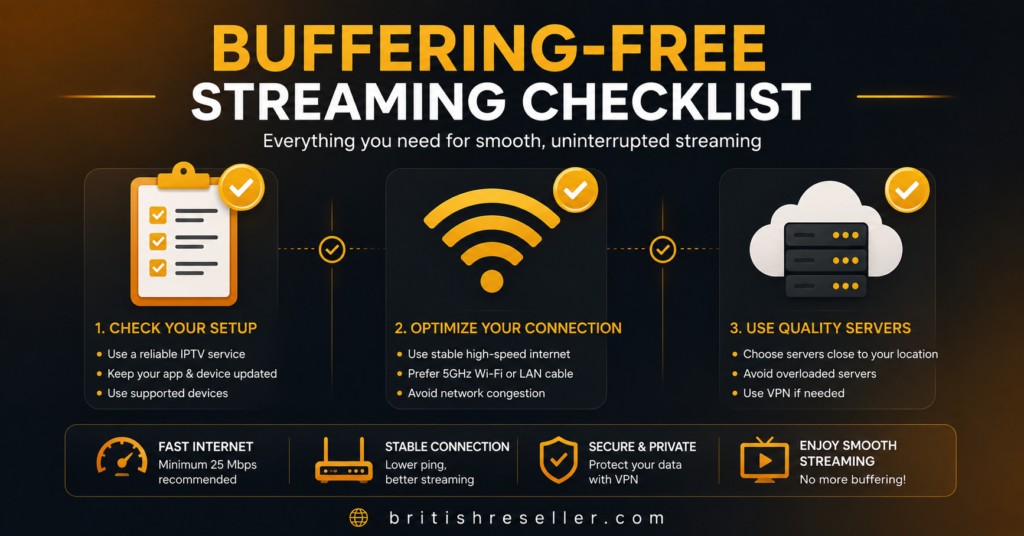
Quick Troubleshooting Checklist
- Test with a wired connection before assuming it’s your ISP
- Run a speed test at peak time and again late at night
- Restart your router with a full ten-second unplug
- Check whether buffering happens on one device or all of them
- Try switching DNS provider
- Test a reputable VPN with a nearby server if pattern-based throttling seems likely
- Lower stream quality temporarily if bandwidth is genuinely limited
- Contact your ISP directly and ask about traffic management policies
Reseller Checklist
- Have a standard troubleshooting message ready for buffering complaints
- Check panel connection logs before assuming a provider-side fault
- Know your escalation path if you operate as a sub-reseller
- Speak to support if a pattern of complaints points to server-side congestion