

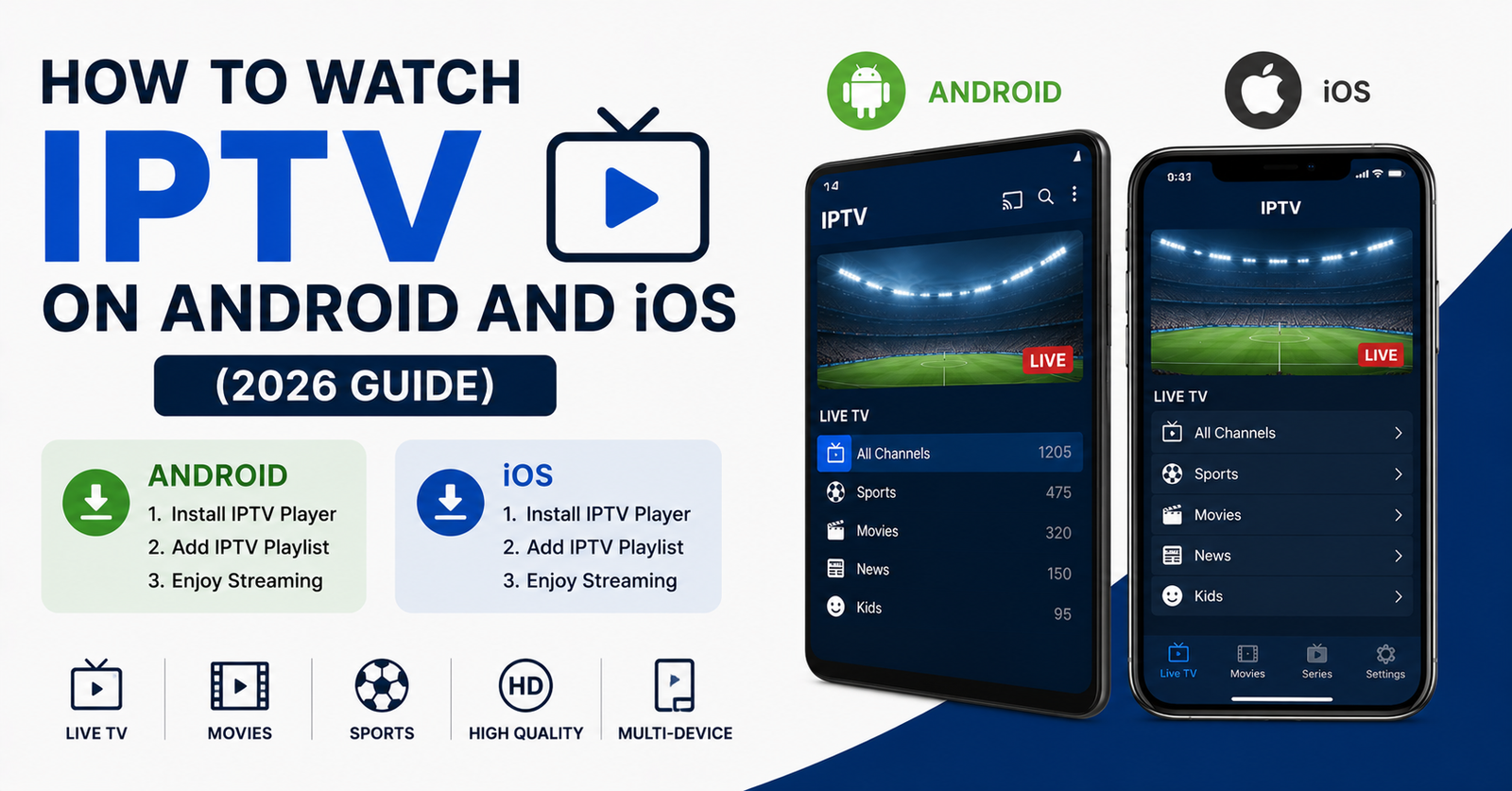
How to Watch IPTV on Android and iOS: What Nobody Tells You About Mobile Streaming
Most mobile IPTV problems have nothing to do with your subscription, they come from how phones manage battery, background apps, and switching between Wi-Fi and cellular mid-stream. Fix those three things and the vast majority of “buffering” complaints disappear.
A UK IPTV reseller messaged us last winter, furious. Half his customers were complaining about constant freezing, and he was convinced our servers were the problem. We checked. The servers were fine. Every single complaint came from one thing: people trying to watch IPTV on Android and iOS over patchy mobile data while walking around, then blaming the stream when their signal dropped behind a building.
That’s the gap this guide closes. Learning how to watch IPTV on Android and iOS isn’t really about which app you download. It’s about understanding why phones behave completely differently from a TV box, and most setup tutorials skip that part entirely. Mobile streaming has its own rules, and once you know them, the experience stops feeling broken.
Phones Are Not Small Televisions
The biggest misconception we see is that a phone is just a tiny TV. It isn’t. Your Android handset or iPhone is constantly making decisions you never see, throttling background apps, switching between Wi-Fi and cellular mid-stream, and aggressively closing players to save battery. A set-top box does none of this.
This matters because the same IPTV subscription that runs perfectly on a Firestick can stutter on a phone for reasons that have nothing to do with the service. When you watch IPTV on Android and iOS, you’re fighting the operating system’s power management as much as anything else.
Pro Tip: If your stream dies whenever the screen locks, the player isn’t broken. iOS and Android both suspend network activity for backgrounded apps. Always check your player’s “background playback” or “keep screen on” setting before assuming the service failed.
Why Android and iOS Need Different Players
Here’s something the generic guides flatten into nonsense: Android and iOS are not interchangeable. Apple’s app review process keeps most dedicated IPTV players out of the official App Store, while Android lets you sideload almost anything. That single difference shapes your entire setup.
On Android, you have real choice. On iOS, you’re working within Apple’s walls, which means fewer apps but, paradoxically, more consistent behaviour because Apple enforces stricter background rules.
Here’s how the two platforms actually differ for IPTV purposes.
| Factor | Android | iOS (iPhone/iPad) |
|---|---|---|
| App availability | Wide, sideloading allowed | Limited to App Store |
| Player options | Many (player apps abound) | Few approved players |
| Codec support | Broad, varies by device | Consistent across devices |
| Background playback | Configurable | Heavily restricted |
| Setup difficulty | Moderate | Simpler but less flexible |
After helping thousands of subscribers through setup, we’ve found the device split causes more confusion than any actual technical fault. People follow an Android tutorial on an iPhone, hit a wall, and assume their subscription is faulty.
Setting Up on Android, Step by Step
Android gives you flexibility, but flexibility invites mistakes. Here’s the sequence that avoids the common ones.
- Install a reputable IPTV player from the Play Store or via official sideload.
- Choose the Xtream Codes login or M3U URL method, whichever your provider supplied.
- Enter your credentials exactly, including the http or https prefix and port number.
- Let the channel list fully load before tapping anything. Rushing this corrupts the EPG cache.
- Set your buffer size manually if the app allows it. A larger buffer trades a slightly longer startup for far fewer freezes.
One UK IPTV reseller lost a string of customers because he was sending them a bare M3U link with no port number, assuming the app would guess it. It never does. Half his trial users gave up before the first channel loaded.
Setting Up on iPhone and iPad
iOS is stricter, and that’s actually a feature once you accept it. You’ll typically use a player that accepts an M3U URL or an Xtream login, entered through the app’s settings rather than a file.
The thing nobody mentions: iOS players often need the playlist URL re-entered after a major iOS update, because Apple occasionally clears app storage during upgrades. We’ve watched support tickets spike for three or four days after every big iOS release, almost entirely from this one quirk.
Pro Tip: On iPhone, disable Low Power Mode while streaming. It silently caps background network throughput and CPU clock, which is exactly what causes “random” buffering that vanishes when you plug the phone in.
The Real Cause of Mobile Buffering
Buffering on mobile is rarely the server. After reviewing hundreds of support requests, the pattern is almost always one of these: weak Wi-Fi signal, a phone switching to congested cellular data, an undersized player buffer, or Low Power Mode throttling the connection.
Mobile networks are bursty by nature. Your phone might show full bars and still deliver inconsistent throughput because the cell tower is congested. This is why a stream that’s flawless at home falls apart on the train. The data is arriving in uneven gulps, and a small buffer can’t smooth that out.
Quick buffering checklist:
- Switch from cellular to stable Wi-Fi where possible
- Increase your player’s buffer size
- Turn off Low Power / battery saver mode
- Close other bandwidth-heavy apps
- Restart the player if the EPG looks frozen
What Mobile Viewing Demands From the Backend
This is where the subscriber and the IPTV reseller side meet. Mobile users generate a very different load than TV users. They watch in shorter bursts, switch channels constantly, and connect from dozens of different networks across a day. An IPTV operator running cheap, single-source infrastructure feels this immediately during peak mobile hours.
For any reseller building a subscriber base on phones, the panel and backend matter enormously. A serious IPTV reseller panel needs proper load balancing so that thousands of mobile connections switching networks don’t crash a single overloaded node. We learned this during a major football fixture when mobile connections spiked four times above the TV baseline in ten minutes.
Pro Tip: If you’re a panel owner or sub-reseller, watch your concurrent-connection graph during live sport, not your total subscriber count. Mobile viewers reconnect far more often, and that reconnection storm is what actually melts undersized infrastructure.
Battery, Data, and the Things That Annoy People Most
Two complaints dominate mobile support tickets: battery drain and data usage. Both are manageable, and neither is the provider’s fault, but customers don’t know that unless someone tells them.
Streaming video is one of the most demanding things a phone does. A single hour of HD IPTV can consume well over a gigabyte of mobile data, and it’ll warm your handset noticeably. Heat itself causes throttling, which then causes buffering, which gets blamed on the stream.
Here’s a quick reference for the most common mobile complaints and what actually fixes them.
| Concern | What helps |
|---|---|
| Battery drain | Lower playback quality, avoid Low Power conflicts, keep phone cool |
| Data overuse | Stream on Wi-Fi, select SD on cellular, monitor with built-in data tracker |
| Overheating | Remove thick cases, avoid charging while streaming for hours |
| Storage warnings | Clear the player’s EPG/logo cache periodically |
A mistake we repeatedly see: subscribers leave the player set to maximum quality on cellular, burn through their data allowance in three days, and then complain the service is “too data hungry.” It’s a settings problem, not a service problem.
Watching at Home vs On the Move
The home Wi-Fi experience and the on-the-go experience are almost two different products. At home, a phone on solid Wi-Fi behaves much like any other device. The moment you step outside, you’re at the mercy of cellular handoffs.
We noticed unusual ISP behaviour on some UK mobile networks during high-traffic evenings, where streaming throughput dropped specifically for video-shaped traffic even when general speed tests looked fine. A stable connection and a generous buffer are your only real defences against this on the move.
Pulling It Together
The people who watch IPTV on Android and iOS successfully all do the same handful of things. They use the right player for their actual device, they set a sensible buffer, they stream on Wi-Fi when they can, and they leave battery-saver modes off during playback.
If you’re choosing a provider that works cleanly across both platforms, a service tested specifically for mobile, like the setup documented at British Reseller, saves a lot of trial and error. The right combination of a properly configured player and a reseller running solid infrastructure is what makes mobile streaming feel effortless rather than fragile.
Frequently Asked Questions
How do I watch IPTV on Android and iOS using one subscription?
A single IPTV subscription works across both platforms. The credentials are the same; only the player app differs. On Android you have more app choices, while on iOS you’ll use an App Store player. Enter the same M3U or Xtream login on each device and both will stream the same content.
Why does my stream buffer on mobile data but not on Wi-Fi?
Mobile data is bursty and often congested at the tower, delivering throughput unevenly. Wi-Fi is steadier. Increasing your player’s buffer size helps absorb the uneven delivery, and turning off Low Power Mode prevents the phone from throttling the connection during playback.
Is it legal to watch IPTV on Android and iOS in the UK?
Streaming content you’re properly licensed for is legal. Legality depends on whether the service holds rights to what it distributes, not on the device. Choose a provider that’s transparent about its content sourcing, and the platform you watch on makes no difference to the legal picture.
Does watching IPTV use a lot of mobile data?
Yes. HD streaming can use over a gigabyte per hour. Stream on Wi-Fi where possible, and drop to standard definition on cellular. Most players let you cap quality per network, which protects your data allowance without you having to think about it.
What should an IPTV reseller check before selling mobile-focused plans?
A reseller should confirm the IPTV reseller panel offers proper load balancing and can handle reconnection spikes, since mobile viewers reconnect far more than TV users. Panel owners and sub-resellers should stress-test concurrent connections during live sport before promising mobile reliability to customers.
Why does my iPhone player lose its playlist after an update?
iOS occasionally clears app storage during major updates, wiping saved playlists. Simply re-enter your M3U URL or Xtream credentials in the player settings. This is an Apple behaviour, not a fault with your subscription, and it only takes a minute to fix.
Can I watch on my phone and TV at the same time?
That depends on how many simultaneous connections your subscription allows. Single-connection plans permit one device at a time. If you want phone and TV running together, ask your provider or reseller for a multi-connection plan before assuming it’s included.
Action Checklists
Resellers:
- Verify your IPTV reseller panel offers real load balancing, not just headcount limits
- Stress-test concurrent connections during a live sports window
- Send customers complete credentials with port numbers, never bare links
- Provide a one-page mobile setup sheet split by Android and iOS
- Monitor reconnection spikes, not just total subscriber count
Sub-Resellers:
- Confirm panel credits and connection allowances before reselling mobile plans
- Test both an Android and an iOS device personally before onboarding clients
- Set clear expectations on data usage to cut data-related support tickets
- Escalate concurrent-connection issues to the panel owner early during peak events
Subscribers:
- Match the player to your device: Android player for Android, App Store player for iOS
- Enter the full M3U URL or Xtream login, including port number
- Increase buffer size before first use
- Stream on Wi-Fi; cap quality to SD on cellular
- Turn off Low Power / battery saver during playback
- Re-enter your playlist after major OS updates if channels vanish
The core lesson: on mobile, most “streaming problems” are device and network problems wearing a disguise. Get the player, buffer, and connection right, and the service finally shows what it can do. For a reseller, the same truth scales up: the infrastructure behind those phones, not the channel count, decides whether mobile subscribers stay.