

The best DNS settings for IPTV usually mean swapping your internet provider’s default DNS for a faster public resolver, such as Cloudflare or Google, entered either on your router or directly on your streaming device. This one change often shortens the time it takes an app to load channels, reduces the delay before playback starts, and can cut down on random app crashes when your service first connects. It will not fix every streaming problem, since buffering can also come from your internet speed or the app itself, but it is one of the quickest checks worth doing before you assume something bigger is wrong.
Why DNS Matters More Than Most IPTV Users Realise
DNS is the system that translates a web address into the server location your device actually needs to reach. Every time your IPTV app opens, it is quietly making dozens of these lookups to find the servers holding your channel list, EPG data, and stream files. If your DNS server is slow to respond, congested, or geographically distant, every one of those lookups takes slightly longer. On a website, that delay is barely noticeable. On an IPTV app pulling live data constantly, it adds up to longer load times, slower channel switching, and in some cases app timeouts that look like a service outage but are not.
Most home routers are set by default to use the DNS servers handed out by the ISP. These work fine for general browsing but are not always optimised for the kind of rapid, repeated requests that IPTV streaming apps generate. Switching to a dedicated public DNS resolver is a small, free change that many IPTV support teams recommend as a first troubleshooting step.
Best DNS Settings for IPTV: The Options Worth Trying
There is no single DNS server that works best for every household, since performance depends on your location, your ISP’s routing, and even the time of day. That said, a handful of public resolvers are widely used because they are fast, reliable, and free to configure.
Cloudflare’s 1.1.1.1 is popular for its speed and its stated focus on not logging browsing data long term. Google’s 8.8.8.8 is another common choice, well established and consistently available. Quad9 (9.9.9.9) adds a layer of basic security filtering by blocking known malicious domains, which some users prefer even if it adds a fraction of a second to lookups.
Pro tip: Try two or three DNS providers over separate days rather than switching constantly. Performance differences are easier to judge over a full evening of normal use than a five-minute test.
| Public DNS Provider | Main Focus |
|---|---|
| 1.1.1.1 (Cloudflare) | Speed and minimal logging |
| 8.8.8.8 (Google) | Reliability and wide availability |
| 9.9.9.9 (Quad9) | Basic security filtering |
Setting DNS on Your Router
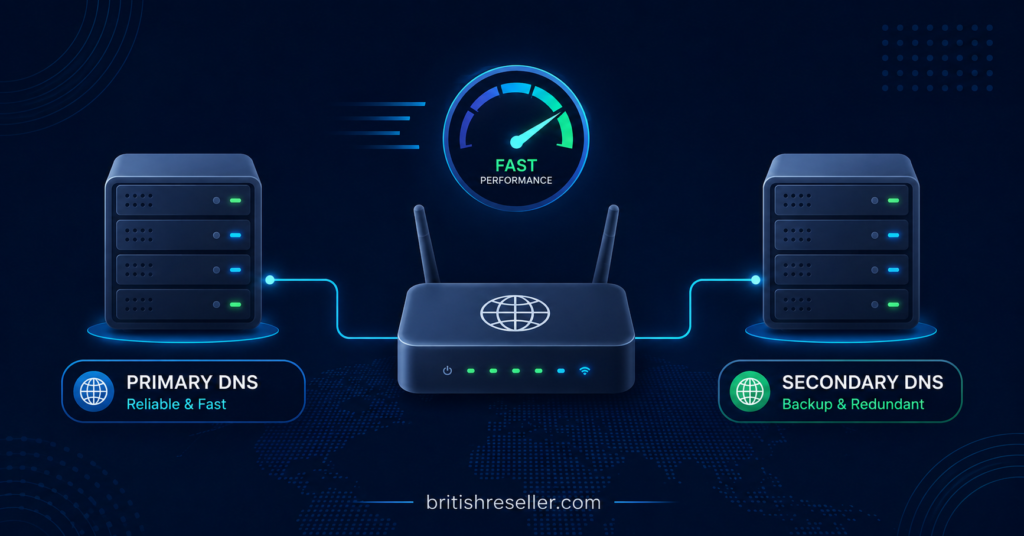
Changing DNS at the router level is usually the most efficient approach, since it applies to every device on your network at once, including Smart TVs, Firestick devices, and phones running an IPTV app.
Log into your router’s admin panel, usually reached by typing its IP address into a browser. Look for a section labelled internet settings, WAN settings, or DNS. Replace the automatic or ISP-assigned entries with your chosen primary and secondary DNS addresses. Save the changes and restart the router so every connected device picks up the new settings.
Router menus vary a lot between manufacturers, so if you cannot find the DNS field, checking your router’s exact model number alongside its manual is more reliable than generic instructions.
Setting DNS on a Specific Device Instead
If you would rather not touch router settings, most streaming boxes and Smart TVs let you set DNS individually under their Wi-Fi or Ethernet network configuration, usually inside an advanced or manual setup option. This only affects that one device, which is useful if you want to test a new DNS server without changing anything for the rest of the household.
On Android-based boxes and Fire TV devices, this is typically found under Settings, then Network, then the connected network’s advanced options. Entering a static DNS there overrides whatever the router provides.
When DNS Is Not the Actual Problem
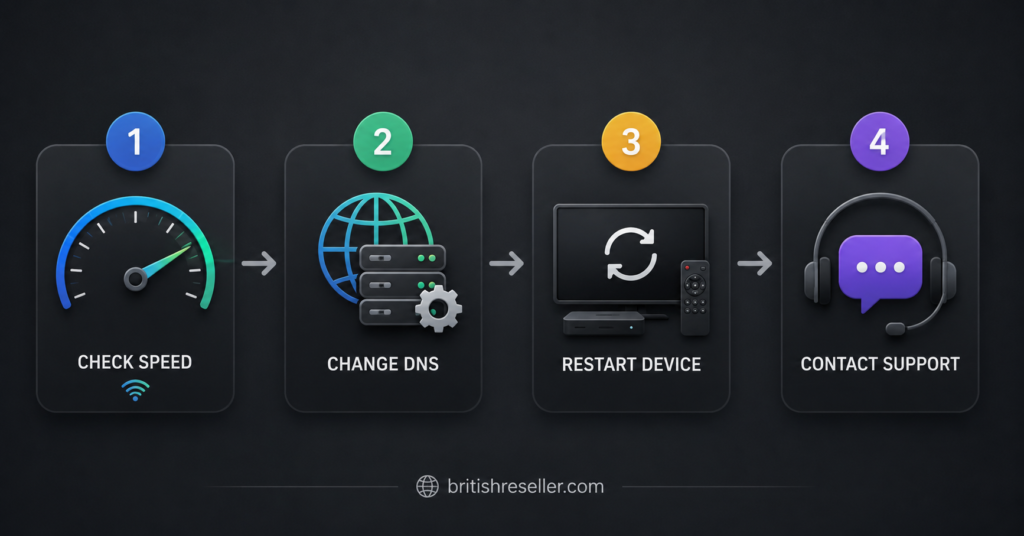
DNS changes help with a specific type of slowness, mainly delayed loading and connection lookups. They will not fix buffering caused by insufficient internet speed, an overloaded home Wi-Fi network, or a problem on the provider’s own servers. If channels still stall mid-stream after switching DNS, the more likely causes are your available bandwidth, too many devices competing for the same connection, or a temporary issue with the service itself.
| Symptom | Likely Cause |
|---|---|
| Slow app or channel loading | DNS lookup delay |
| Stream starts then freezes | Bandwidth or Wi-Fi congestion |
| Works on some devices, not others | Device-specific network settings |
| Every user reports the same issue | Provider-side outage |
Pro tip: Run a basic speed test on the same device right after a buffering episode. If your download speed drops well below what you normally get, DNS is unlikely to be the main issue.
Checking Whether the Change Actually Helped
It helps to judge results properly rather than relying on a single good evening. Note how long your main channels usually take to load before making any changes, then compare that to loading times over several days after switching DNS. Pay attention to whether the improvement holds up during peak evening hours, since that is when ISP DNS congestion is most likely to show up in the first place.
If you use an app like TiviMate or IPTV Smarters, some apps cache playlist data differently, so results can vary slightly between them even on the same DNS setup. It is worth testing your main app specifically rather than assuming results transfer across every player you have installed.
A Note on VPNs and DNS Together
Some IPTV users also run a VPN, and it is worth knowing that a VPN can override your manually configured DNS unless the VPN app has a setting to allow custom DNS through. If you have changed DNS but notice no difference at all, check whether an active VPN is quietly routing DNS requests through its own servers instead.
Pro tip: If your VPN app has a “custom DNS” or “split DNS” toggle, enable it and re-enter your chosen DNS addresses there rather than assuming the router-level setting still applies.
For Subscribers Comparing Providers
If DNS changes and basic router troubleshooting still leave you with regular buffering, it is worth stepping back and looking at the service itself rather than continuing to tweak network settings indefinitely. Ask what typical peak-time performance looks like, whether the provider publishes any information about server capacity, and what your options are if the service consistently underperforms. Providers who are transparent about these details tend to be easier to troubleshoot with when something does go wrong.
If you are dealing with a playlist that will not load at all rather than one that loads slowly, that is a slightly different issue, and our playlist troubleshooting guide walks through the more common causes step by step.
For Resellers Supporting Customers
If you run an IPTV reseller panel, DNS-related buffering complaints are one of the most common support tickets you will get, and they are usually quick to resolve once a customer understands where to change the setting. Keeping a short, simple explanation ready, along with the two or three DNS options you recommend, saves repeat back and forth. It also helps to ask early whether the customer is on a router, a Smart TV, or a streaming box, since the steps differ enough that generic advice often causes more confusion than it solves.
Device Compatibility Worth Checking
Not every device handles manual DNS entry the same way, and older Smart TV models in particular sometimes limit how much you can adjust. If your device does not allow manual DNS at all, changing it at the router level is the more reliable route. For a broader look at which devices tend to perform best for streaming generally, our guide on IPTV apps for Android TV covers compatibility considerations that overlap with a lot of the same network setup questions.
Frequently Asked Questions
Does changing DNS make IPTV load faster?
It can, particularly if your current DNS lookups are slow or congested. It speeds up how quickly your device finds the right servers, though it will not increase your actual internet bandwidth.
Is it safe to use a public DNS server like Cloudflare or Google?
Yes, these are widely used, well established services. Each has its own privacy policy regarding how long lookup data is kept, so it is worth checking the IPTV Reseller Panel provider’s own documentation if that matters to you.
Will DNS settings fix constant buffering during playback?
Not usually. DNS mainly affects loading and lookup speed. Buffering that happens once a stream is already playing is more often linked to available bandwidth or network congestion.
Do I need to change DNS on every device separately?
No, changing it on your router applies the setting to every connected device automatically. You only need to set it per device if you want to test a different DNS on just one.
Can a VPN interfere with my DNS settings?
Yes, some VPN apps route all DNS requests through their own servers by default, which can override a manually configured DNS unless the VPN has a custom DNS option enabled.
How do I know if my slow IPTV is a DNS issue or something else?
Slow app loading and delayed channel switching point toward DNS. Mid-stream freezing or dropped frames usually point toward bandwidth or Wi-Fi congestion instead.